
Prefer to watch? This video walks through the entire installation process from start to finish.
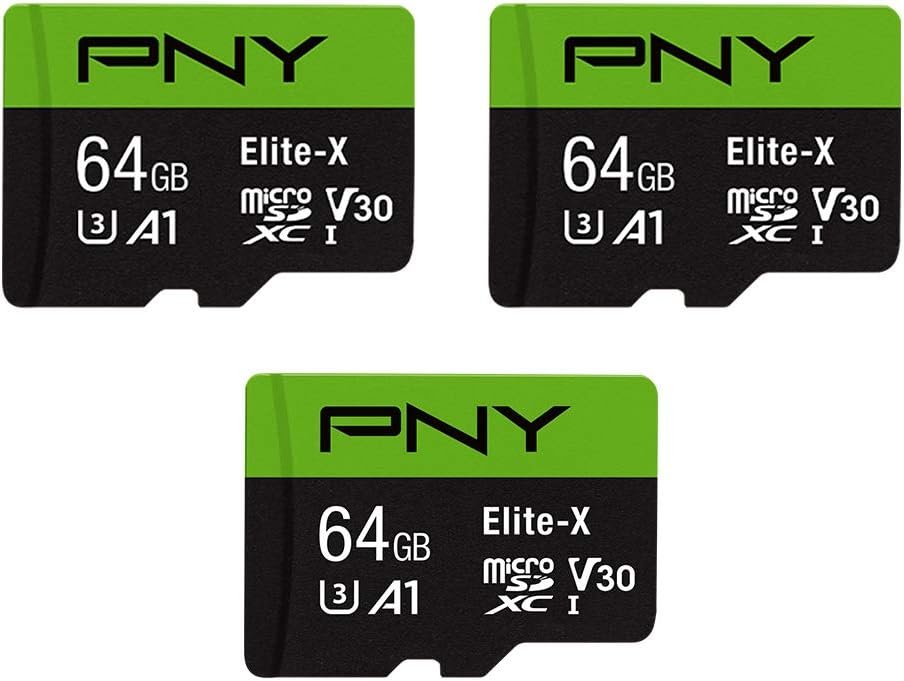
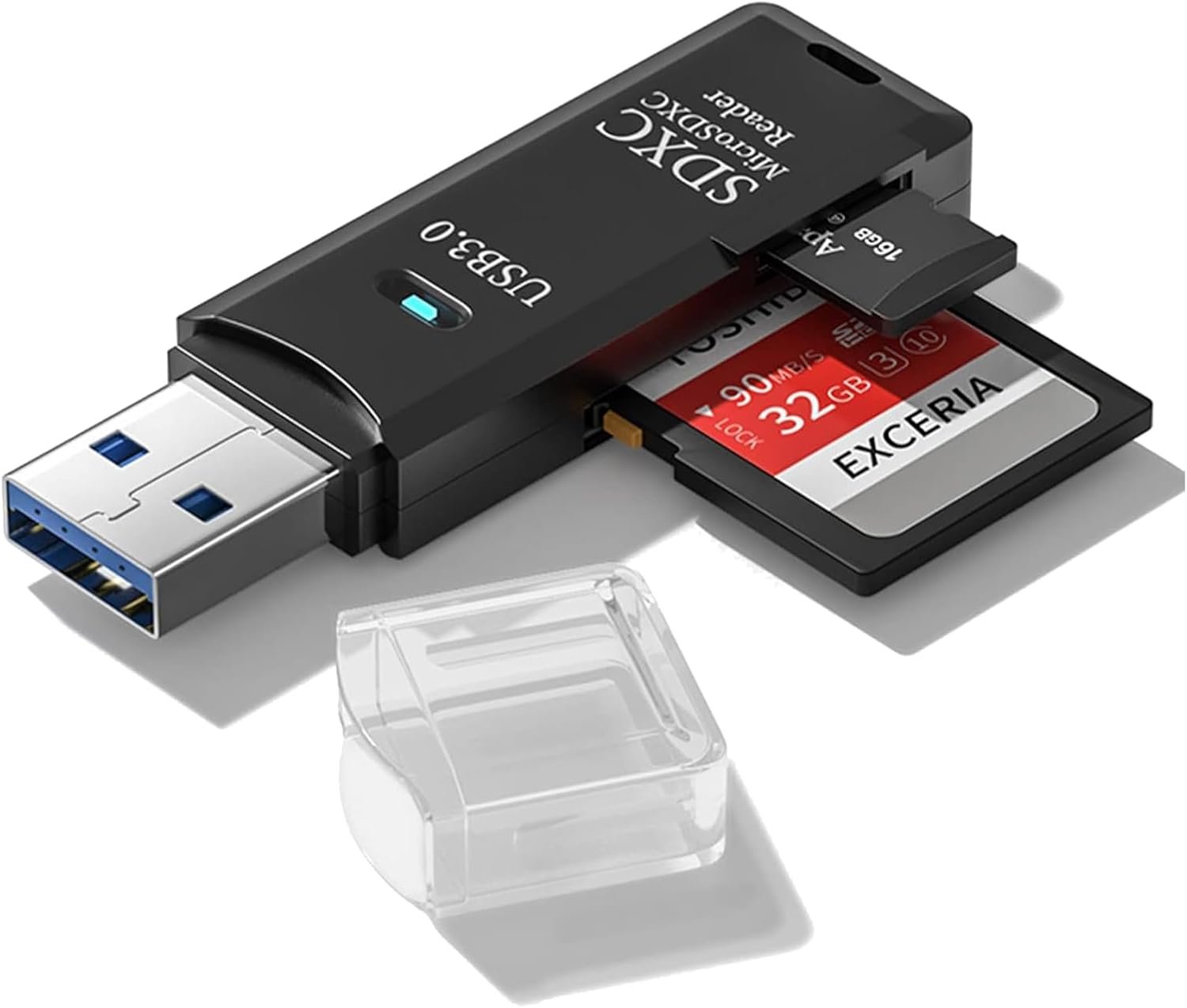
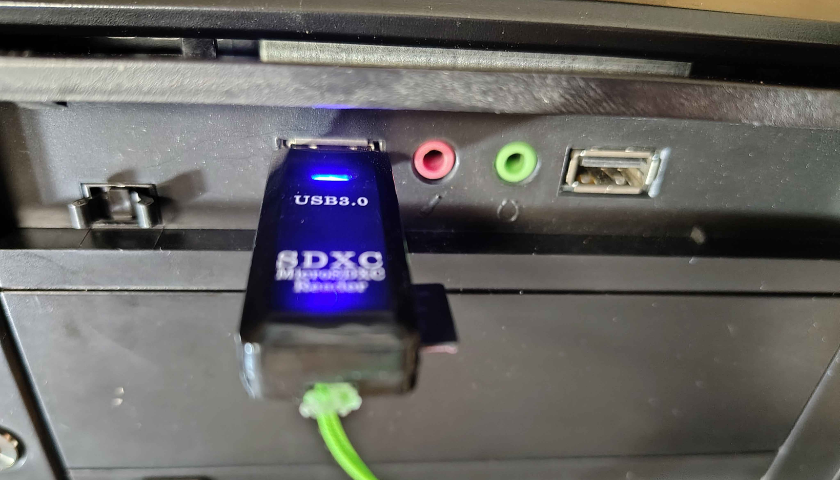
Watch on YouTube →Place your new MicroSD card into your USB card reader and plug it into your PC or Mac. Windows will likely try to open a folder or ask you to format the card — close or cancel any prompts that appear. You do not need to format it first.
Launch Balena Etcher on your computer. You'll see three steps across the screen: Flash from file, Select target, and Flash. You'll work through them left to right.
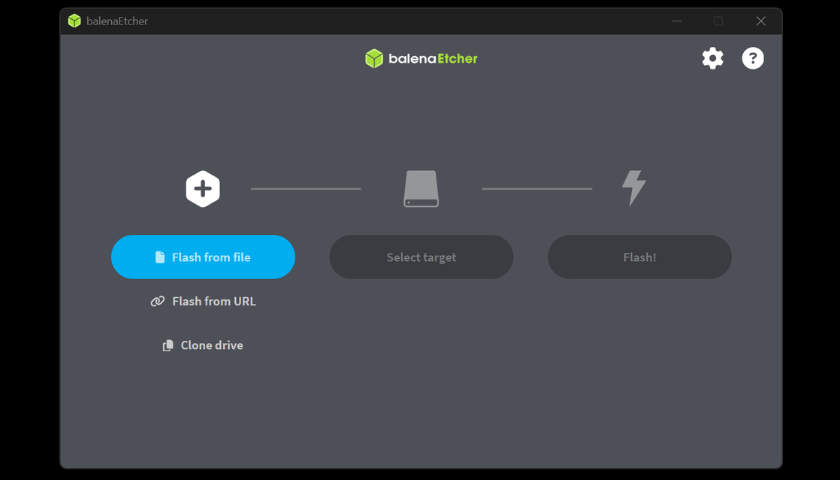
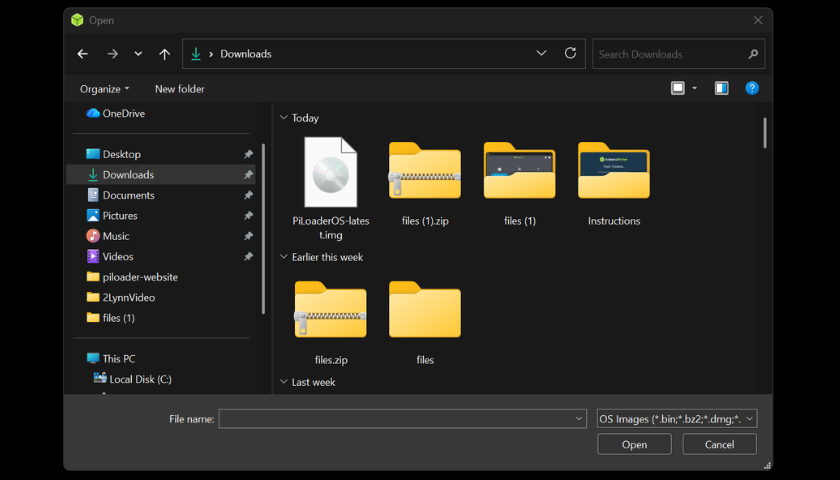
Click "Flash from file". A file browser will open — navigate to wherever you downloaded the PiLoader OS image and select the piloader-cm4.img.gz file — the one you just downloaded. Balena Etcher unpacks it for you, so there's no need to extract it first. Click Open.
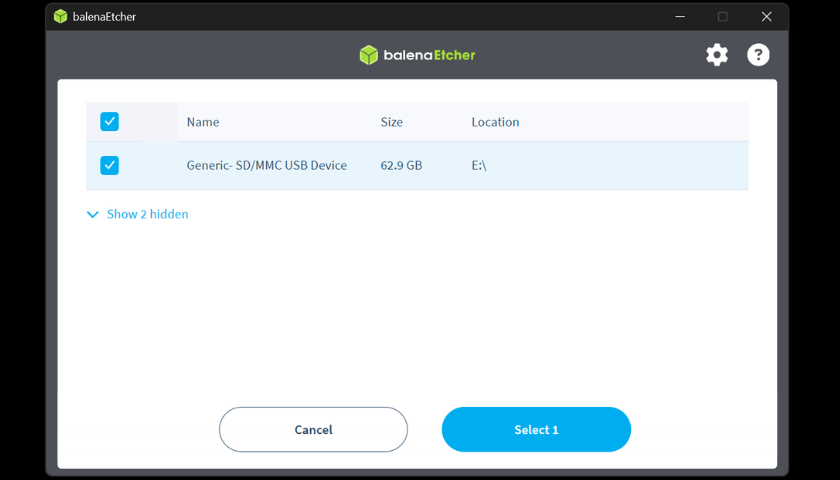
Click "Select target". A list of drives will appear. Select your MicroSD card from the list — it will show the card's storage size. Double-check you're selecting the SD card and not your PC's hard drive.
Important: Selecting the wrong drive will overwrite it. Your SD card will typically show as a smaller removable drive (32GB or 64GB).
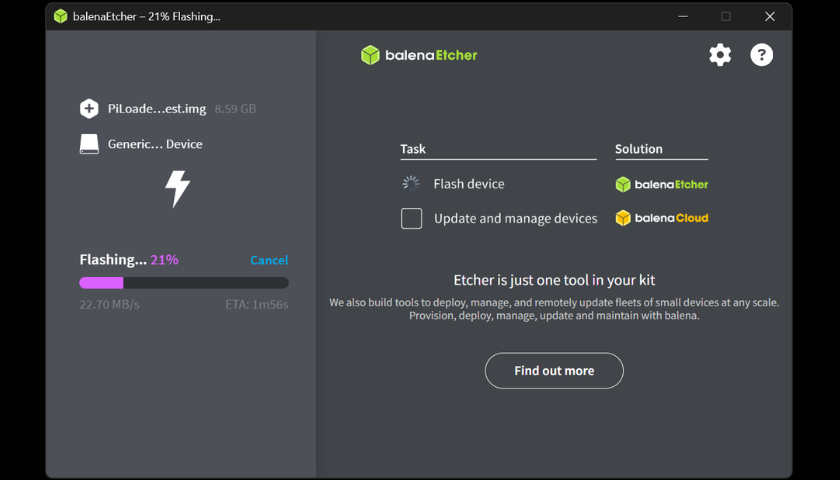
Click "Flash!" and let it run. Balena Etcher will write the image to your card and then automatically verify it. This usually takes 5–10 minutes depending on your card reader and computer speed. Don't remove the card while it's running.
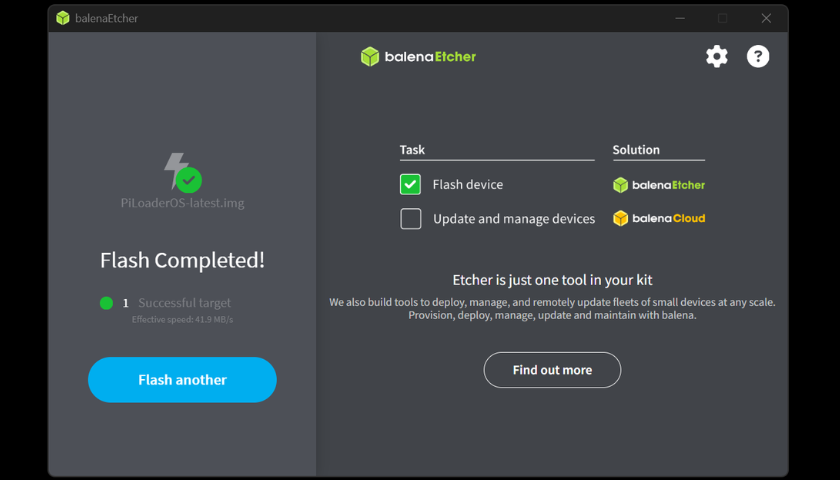
Once Balena Etcher shows "Flash Complete!", close the application. Safely eject and remove the MicroSD card from your reader. Your card is now ready to go.
Power off your Helium miner and remove its original SD card. Don't throw it away — tape it to the inside of the miner's cover or keep it somewhere safe. If you ever want to go back to standard Helium mining, just swap it back in. Your original setup stays completely untouched.
Tip: Write the date on a small piece of tape and stick it to the original card so you always know which one it is.
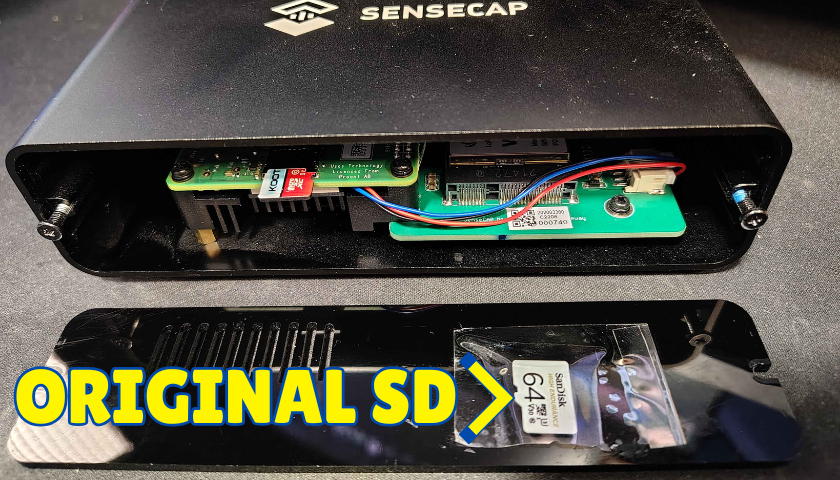
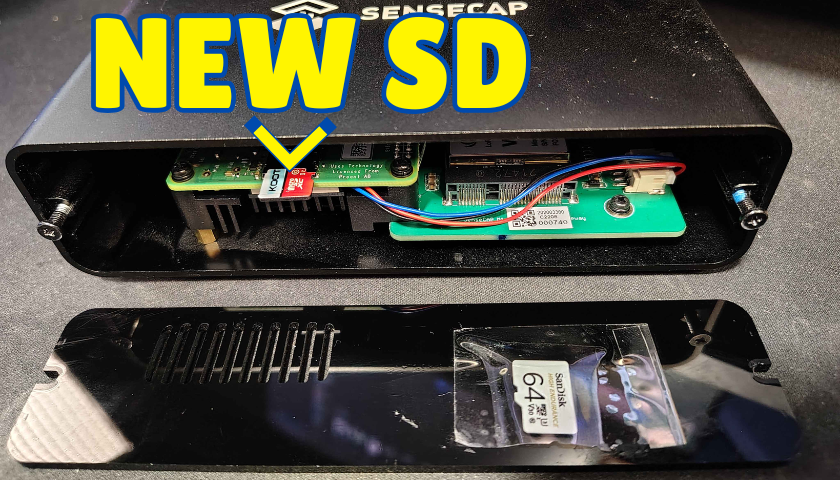
Insert the freshly flashed MicroSD card into your miner or Raspberry Pi. Make sure it's fully seated, then power the device on. PiLoader OS will boot up automatically — first boot takes about 60–90 seconds.
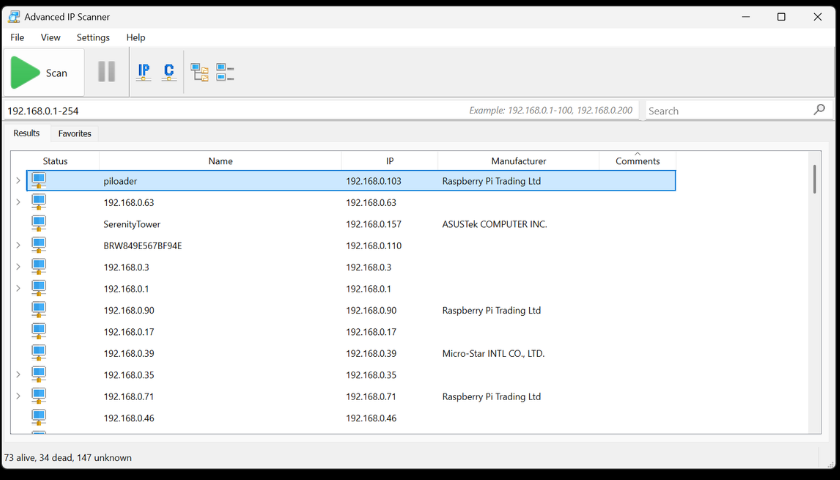
Open Advanced IP Scanner on your PC and click Scan. Look for a device named "piloader" in the results list — the IP address next to it is what you need. Alternatively, log into your home router (usually at 192.168.0.1 or 192.168.1.1) and check the connected devices list.
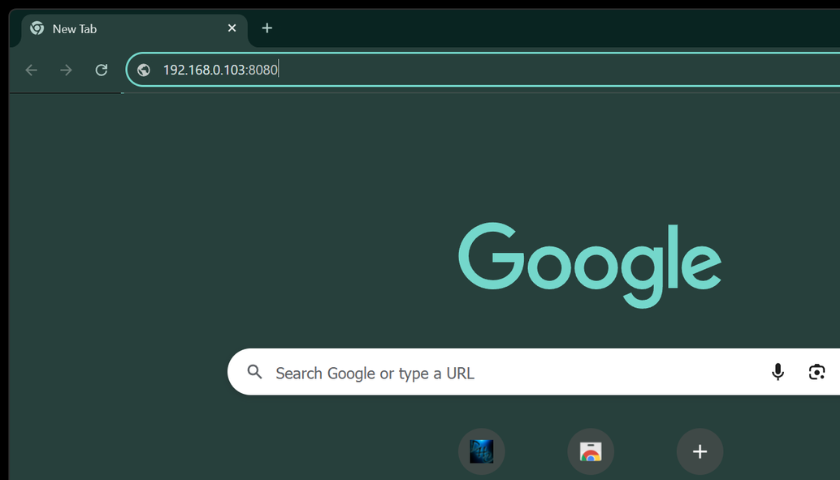
On any device connected to your home network, open a browser and type your device's IP address followed by :8080. For example: 192.168.0.103:8080
You should see the PiLoader OS setup screen. Bookmark this address for easy access going forward.
Shortcut — only one PiLoader device? Use piloader.local:8080 instead of the IP. With a license you can also set a custom name (e.g. garage.local) — handy for multi-device setups.
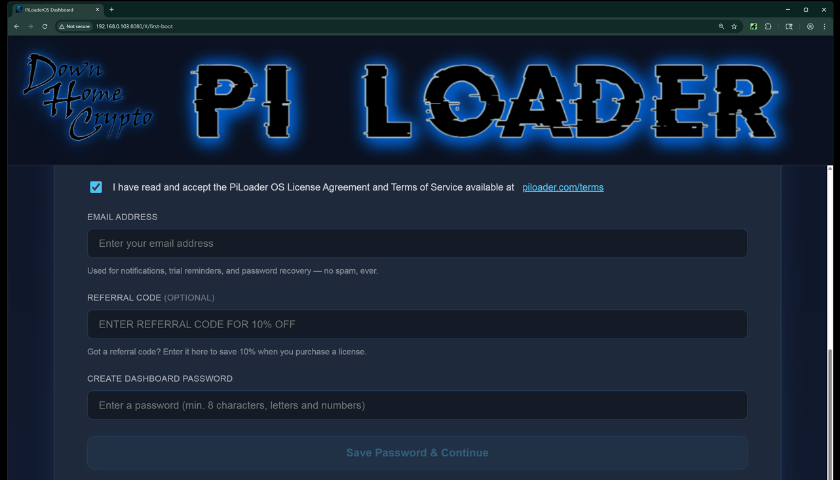
Read through the Terms and Conditions and accept them. Enter your email address — this is required for password recovery and license registration so make sure it's accurate. Choose a strong, unique password for your dashboard. Click "Save Password & Continue" to proceed.
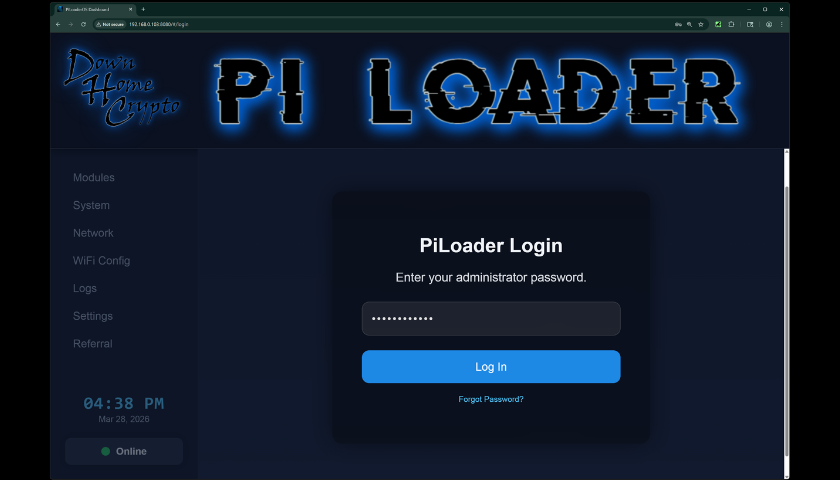
Enter the password you just set and click "Log In". Welcome to your PiLoader OS dashboard — this is your command center. From here you can install and manage your earning modules, monitor your hardware health, configure your network and WiFi settings, set your local time zone, and access everything PiLoader has to offer. You did the hard work — now let your miner start earning for you.
You're Live!
Head to the Modules section in your dashboard and start enabling your earning apps. Enter your credentials, hit install, and PiLoader OS takes care of the rest. Good luck out there — and Happy Mining! 🎉
Join the PiLoader Discord community to stay up to date with the latest news, get help from fellow PiLoader miners, and share your mining adventure with people who get it.