
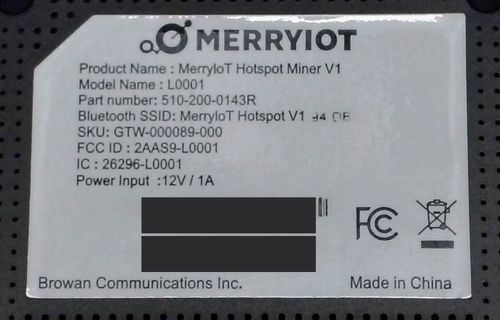
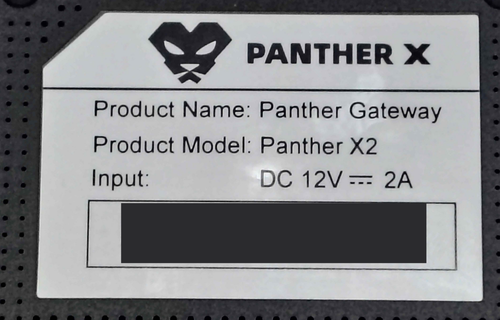
This guide is for two miners that have the same hardware inside a different case. If your miner's label shows one of these names, you're in the right place — both use the same PiLoader download. Other Browan or Panther models are not supported.
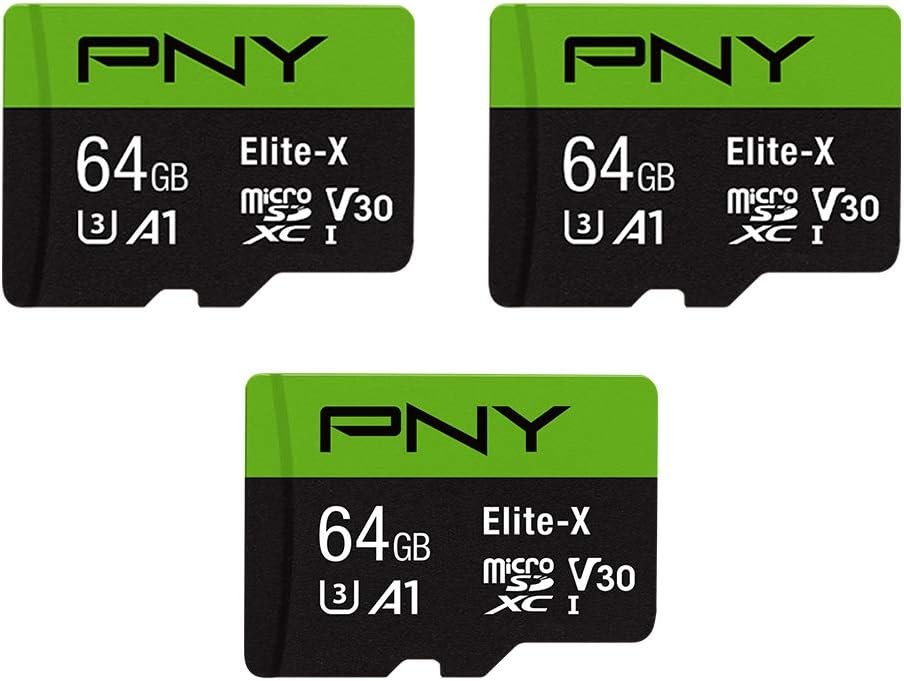
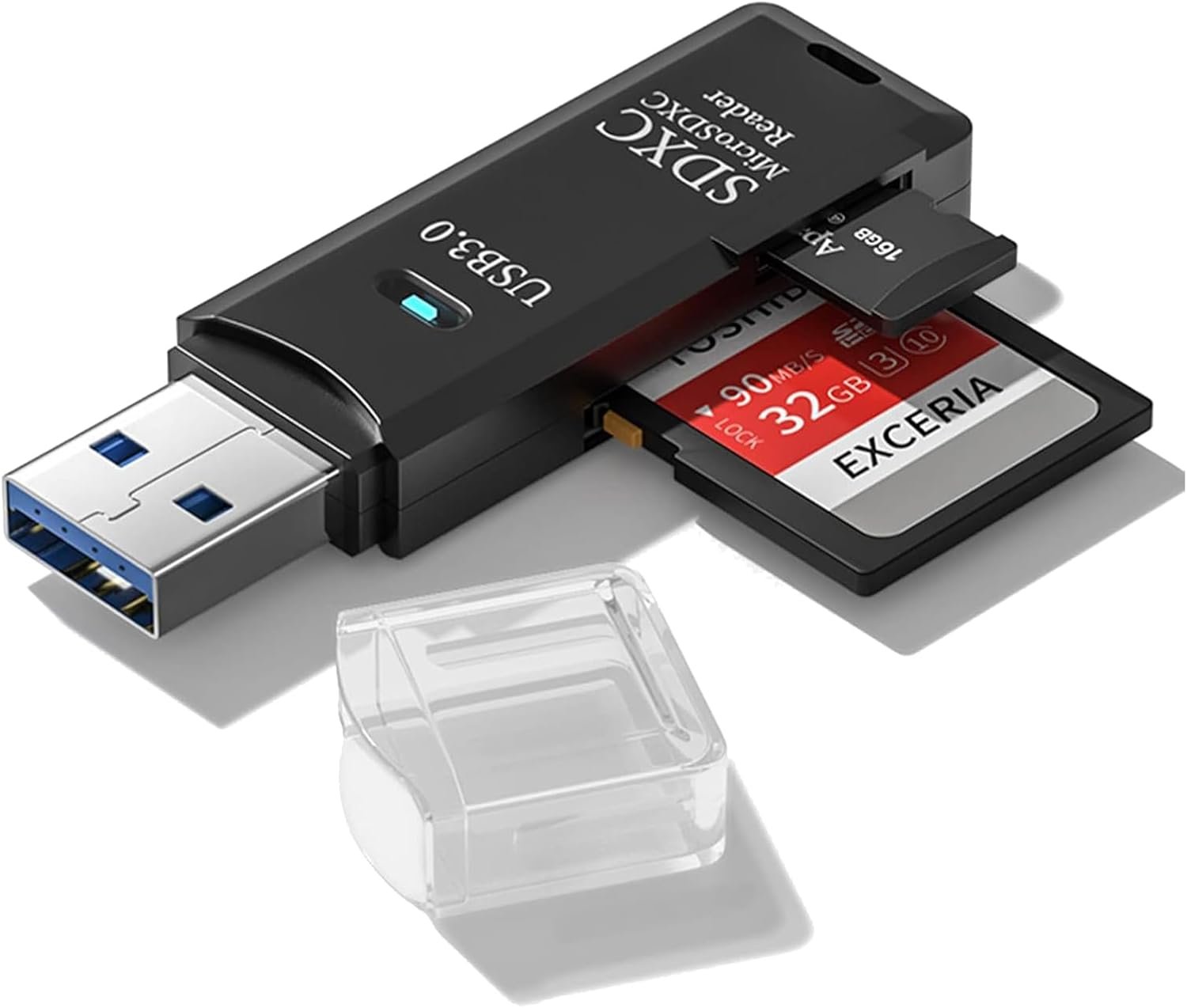
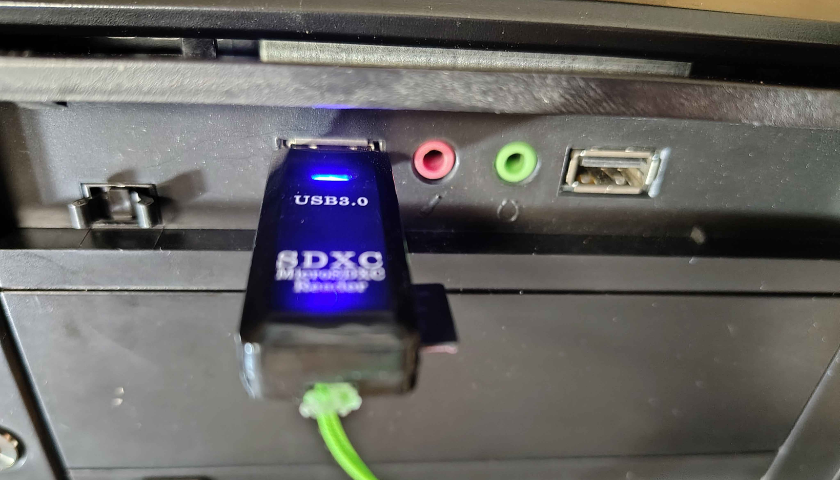
Place your new MicroSD card into your USB card reader and plug it into your PC or Mac. Windows will likely try to open a folder or ask you to format the card — close or cancel any prompts that appear. You do not need to format it first.
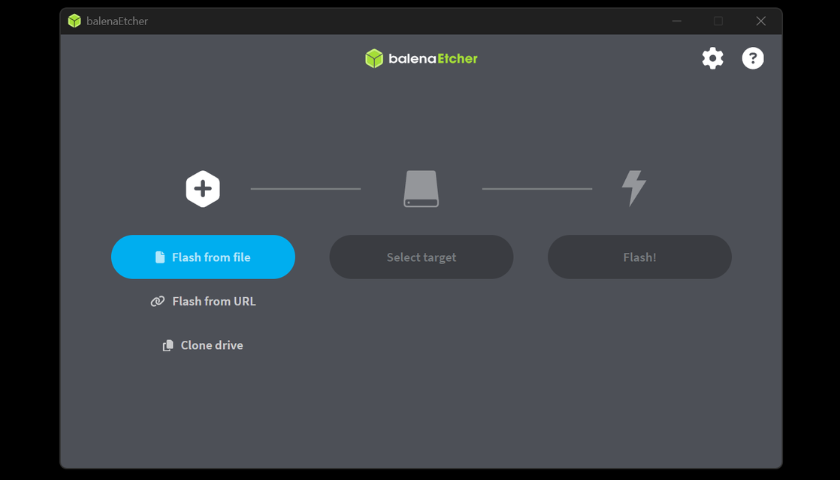
Launch Balena Etcher on your computer. You'll see three steps across the screen: Flash from file, Select target, and Flash. You'll work through them left to right.
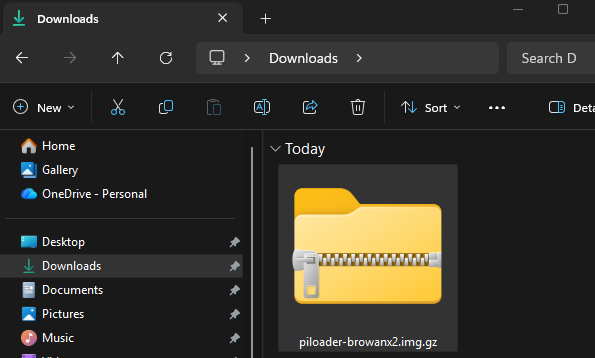
Click "Flash from file". A file browser will open — navigate to wherever you downloaded the PiLoader OS image and select the piloader-browanx2.img.gz file — the one you just downloaded. Balena Etcher unpacks it for you, so there's no need to extract it first. Click Open.
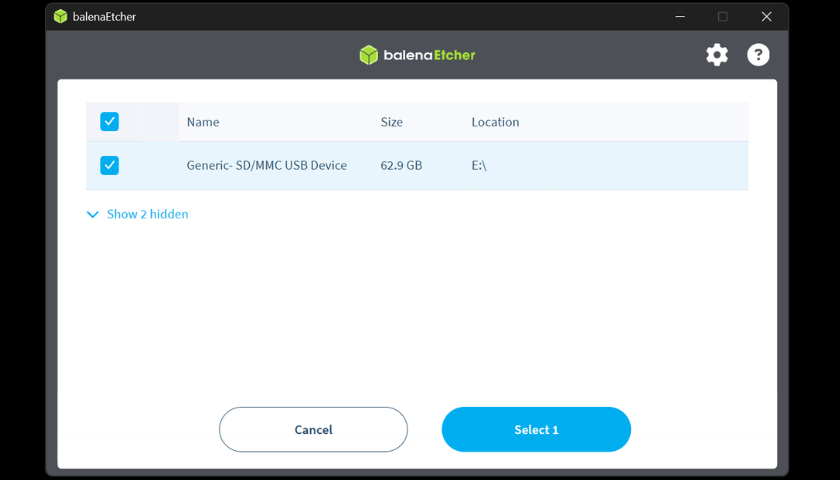
Click "Select target". A list of drives will appear. Select your MicroSD card from the list — it will show the card's storage size. Double-check you're selecting the SD card and not your PC's hard drive.
Important: Selecting the wrong drive will overwrite it. Your SD card will typically show as a smaller removable drive (32GB or 64GB).
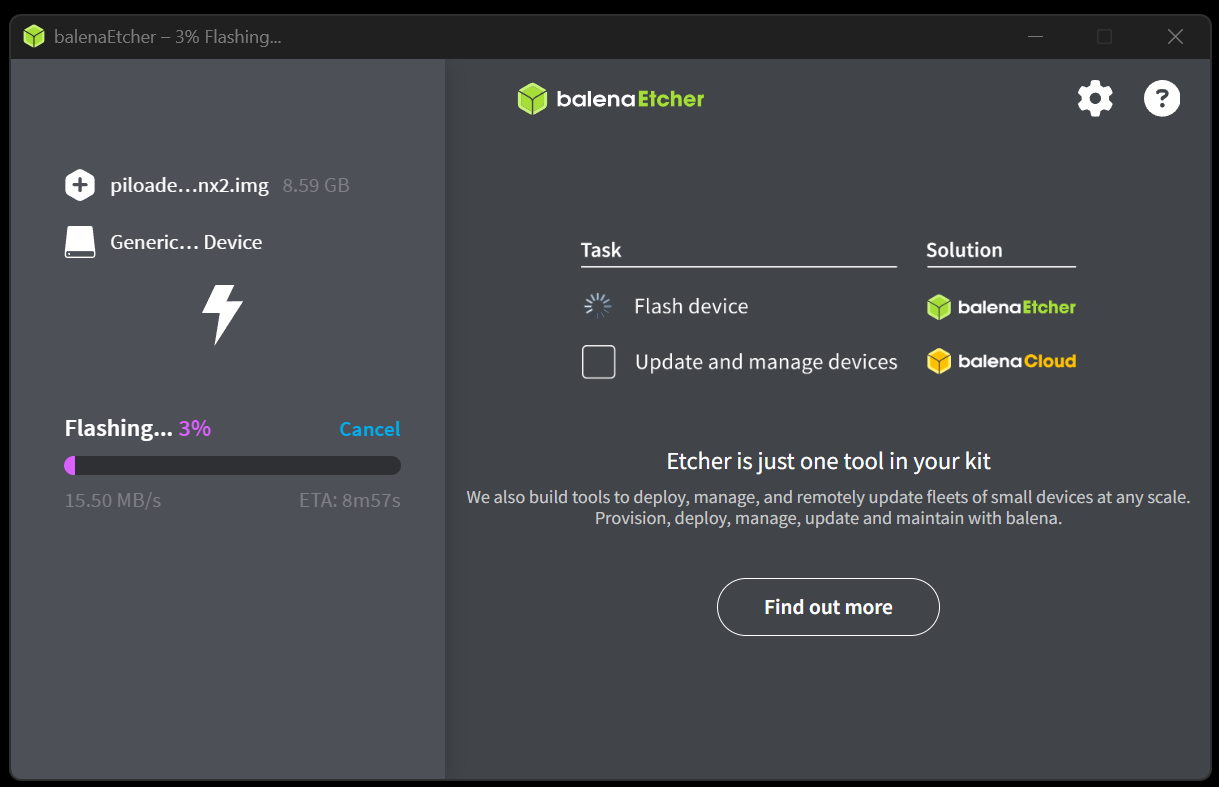
Click "Flash!" and let it run. Balena Etcher will write the image to your card and then automatically verify it. This usually takes 5–10 minutes depending on your card reader and computer speed. Don't remove the card while it's running.
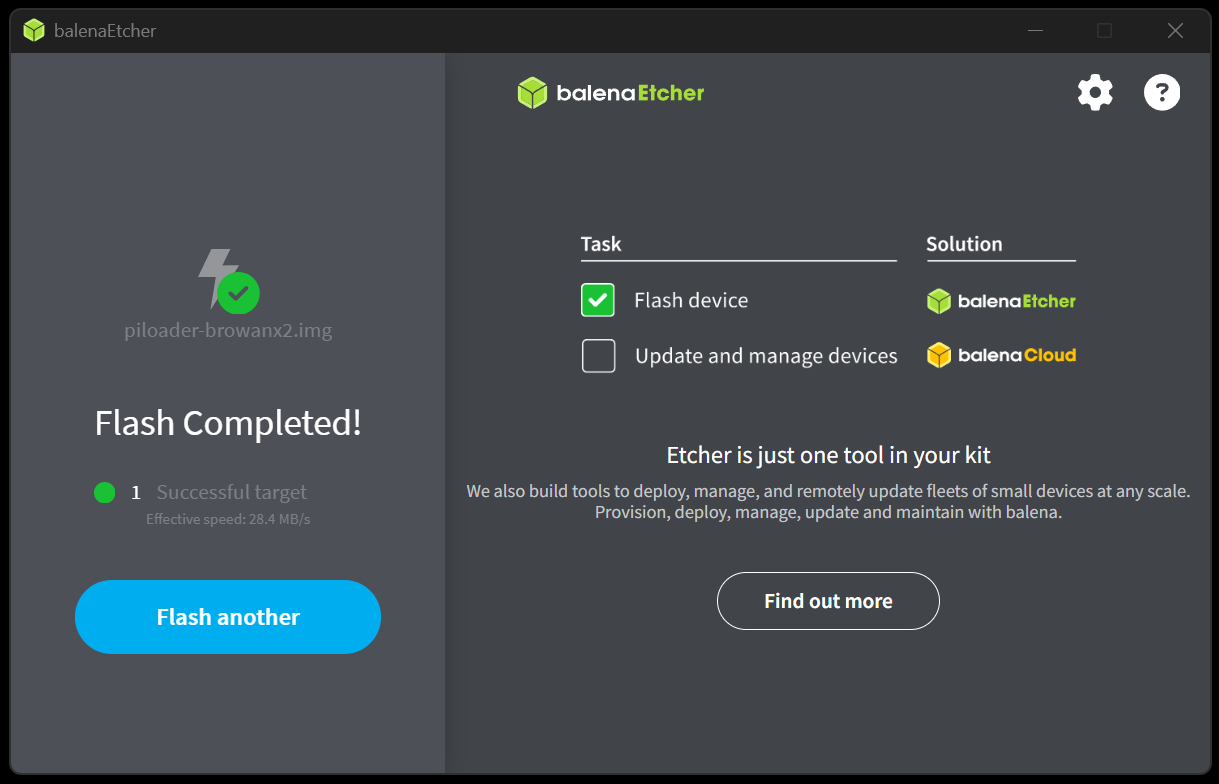
Once Balena Etcher shows "Flash Complete!", close the application. Safely eject and remove the MicroSD card from your reader. Your card is now ready to go.
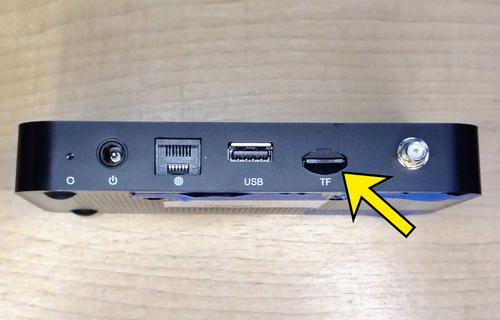
Unplug your miner's power cable. Find the microSD card slot on the back of your miner (marked TF) and remove the original card. Don't throw it away — tape it to the bottom of your miner so it stays safe. It's how you go back to the factory software later, and PiLoader never changes anything stored inside your miner.
Insert your freshly flashed PiLoader card into the same slot until it clicks into place. Make sure the antenna is attached, connect an Ethernet cable from your miner to your router, then plug the power back in. PiLoader OS starts automatically — first boot takes about 60–90 seconds.
Keep the antenna attached whenever your miner is powered on.
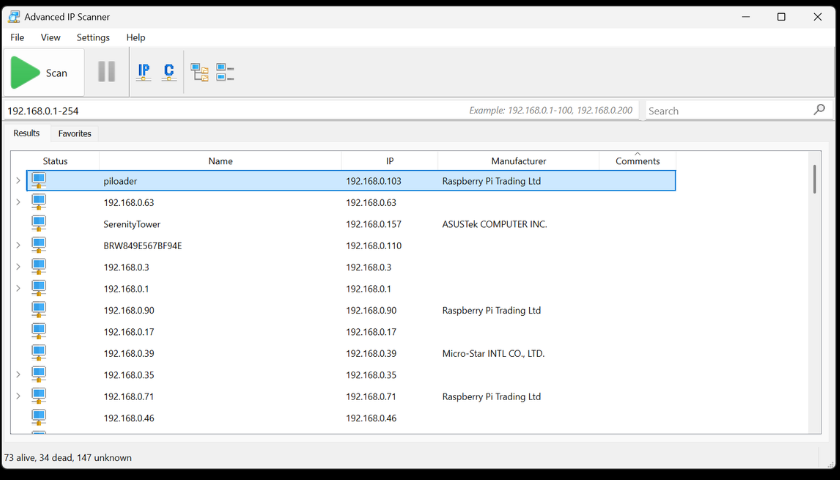
Open Advanced IP Scanner on your PC and click Scan. Look for a device named "piloader" in the results list (it may also show as piloader- followed by a few letters and numbers) — the IP address next to it is what you need. Alternatively, log into your home router (usually at 192.168.0.1 or 192.168.1.1) and check the connected devices list.
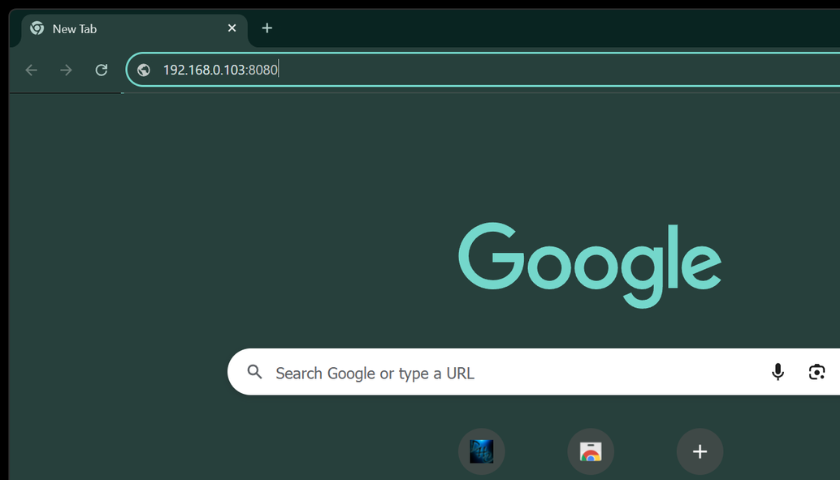
On any device connected to your home network, open a browser and type your miner's IP address followed by :8080. For example: 192.168.0.103:8080
You should see the PiLoader OS setup screen. Bookmark this address for easy access going forward.
Shortcut — only one PiLoader device? Use piloader.local:8080 instead of the IP. With a license you can also set a custom name (e.g. garage.local) — handy for multi-device setups.
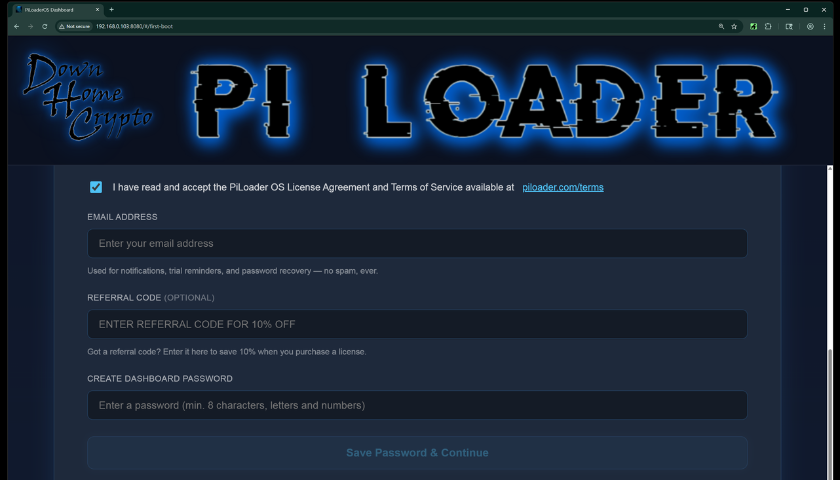
Read through the Terms and Conditions and accept them. Enter your email address — this is required for password recovery and license registration so make sure it's accurate. Choose a strong, unique password for your dashboard. Click "Save Password & Continue" to proceed.
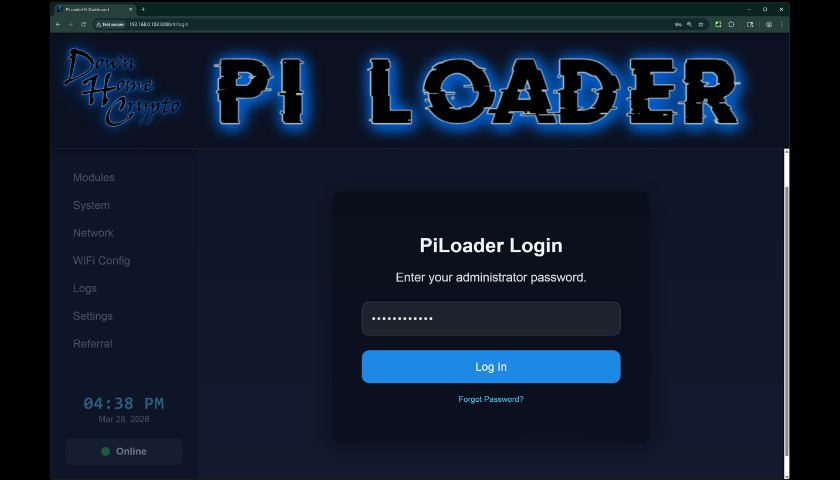
Log in with your new password to reach your dashboard — your command center for installing earning modules, monitoring hardware, and managing your network. Open the Helium module: PiLoader automatically detects your hotspot's identity chip, so it keeps your existing hotspot name. Pick your region (in the United States, choose US915), click Install, and your LoRa concentrator comes online.
On the MerryIoT, the LoRa light turns on once Helium is running.
You're Live!
Head to the Modules section in your dashboard and start enabling your earning apps. Enter your credentials, hit install, and PiLoader OS takes care of the rest. Good luck out there — and Happy Mining! 🎉
Join the PiLoader Discord community to stay up to date with the latest news, get help from fellow PiLoader miners, and share your mining adventure with people who get it.