
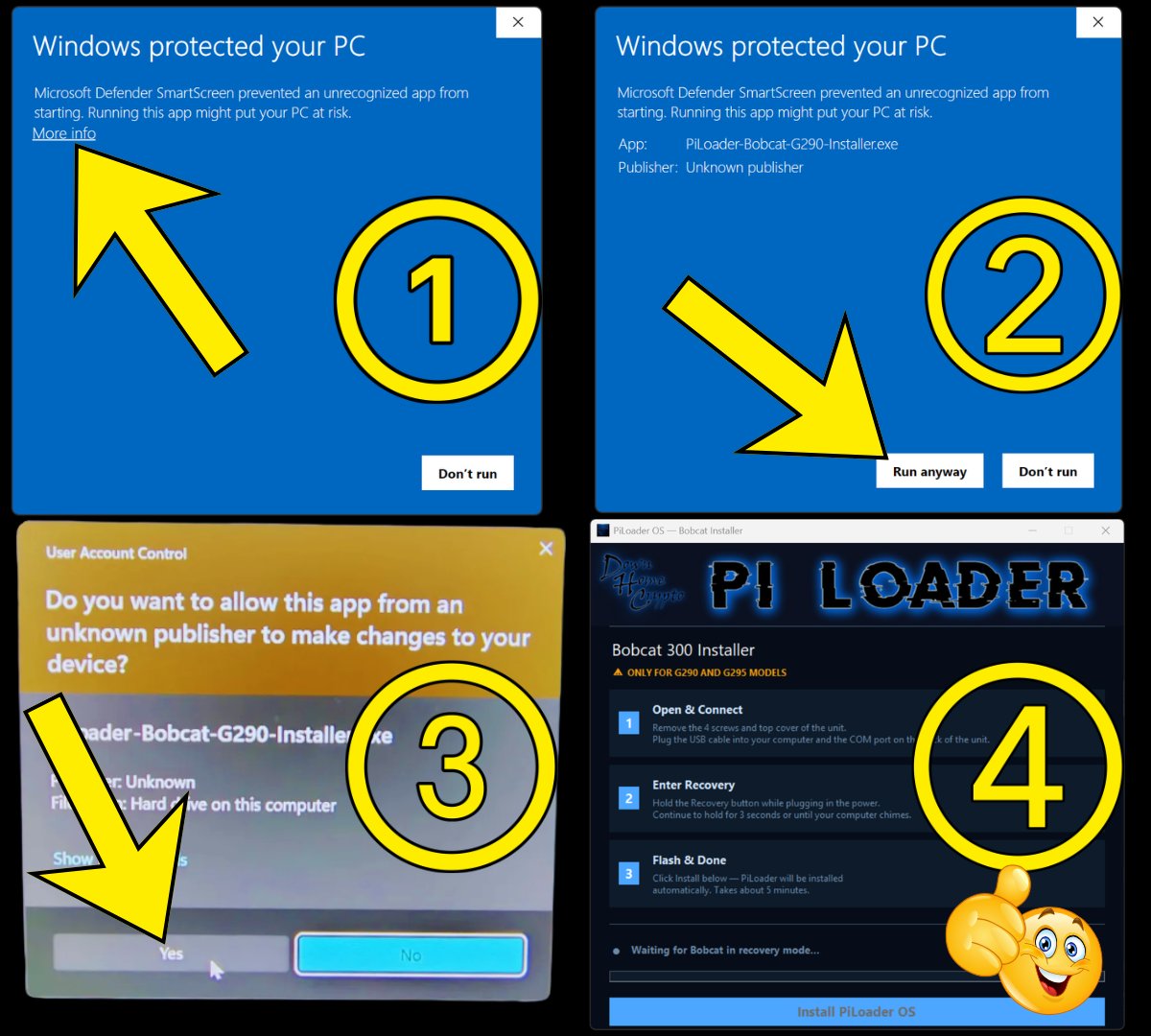
Download the flasher using the button below, then double-click the file to run it. Windows will show a series of warning screens before it opens — this is normal. Work through them in order:
② Same screen expands — click Run anyway
③ User Account Control — click Yes
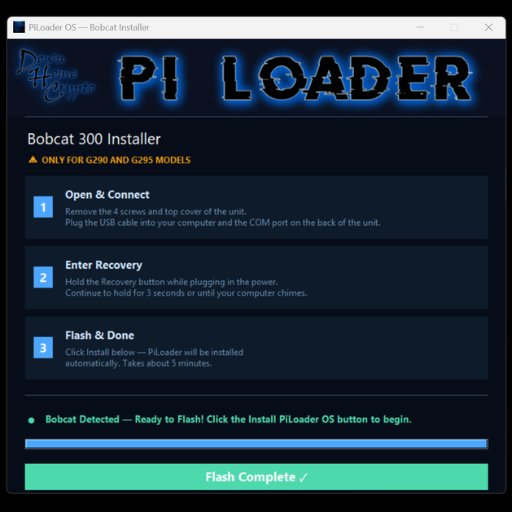
Once the PiLoader OS — Bobcat Installer window opens and shows "Waiting for Bobcat in recovery mode..." you are ready to move to Step 2.
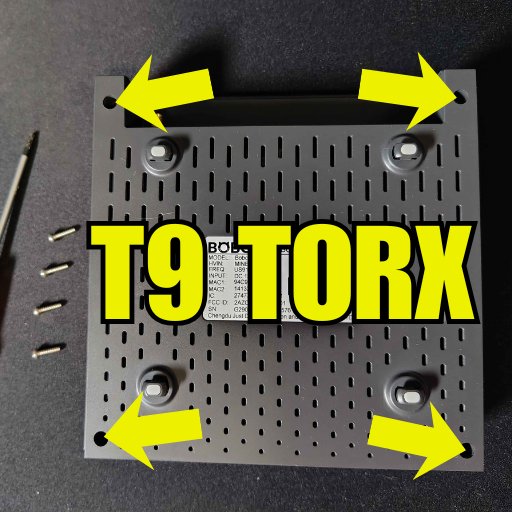
Unplug the power cable and ethernet cable from your Bobcat 300 and set it on a flat surface. Flip it upside down and remove the four T9 Torx screws — one in each corner. Once all four screws are out, flip the miner back over and lift the top cover straight up and set it aside. You now have full access to the internals.
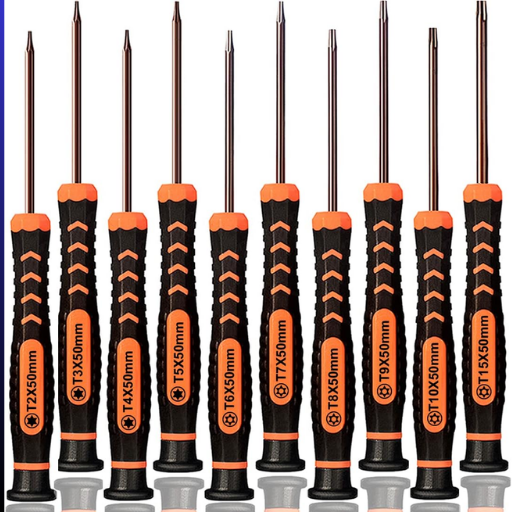
You'll need a T9 Torx screwdriver for this step — a standard Phillips won't fit. T9 Torx drivers are inexpensive and widely available online or at any hardware store.
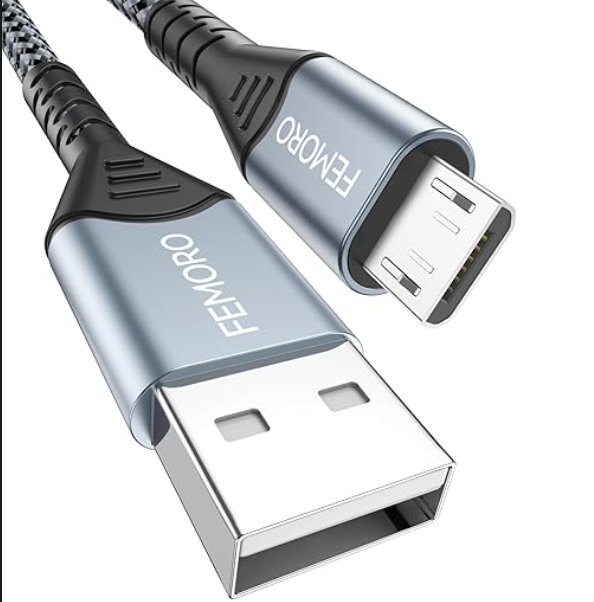
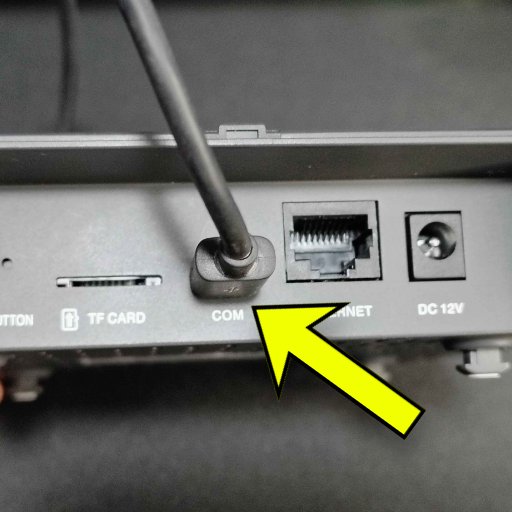
Plug one end of your micro USB cable into the COM port on the back of the miner and the other end into a USB port on your Windows PC.
Do NOT plug the USB cable into the DEBUG port inside the device.
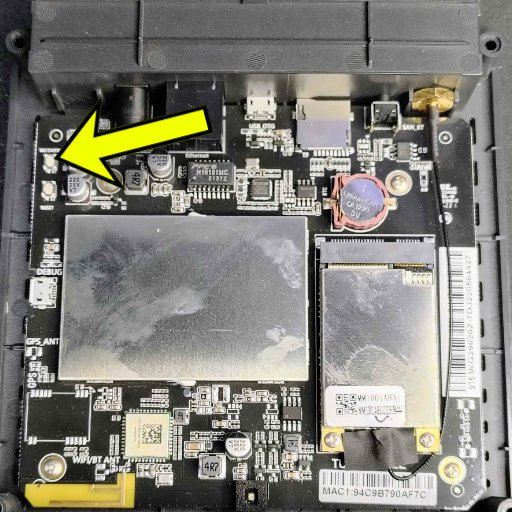
With the top cover removed, look along the back edge of the PCB and find the small rubber button labeled RECOVERY. Take note of exactly where it is — you'll be pressing and holding it in the next step when you plug in power.
There are two buttons along the back edge of the PCB — one labeled RECOVERY and one labeled RESET. Make sure you have the right one before continuing.
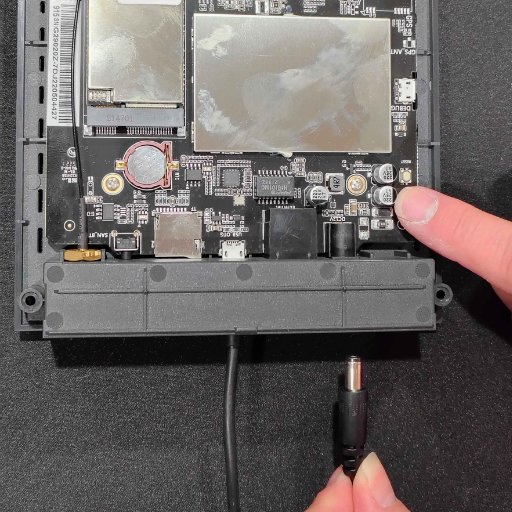
With the PiLoader flasher open and the USB cable connected, press and hold the RECOVERY button, then plug in the power cable while continuing to hold it. Keep holding the RECOVERY button until you hear Windows make a chime sound — this means the device has been detected. The PiLoader flasher will then show "Bobcat Detected — Ready to Flash!" and you can release the button.
Once you see "Bobcat Detected — Ready to Flash!" in the PiLoader window you are ready to move to the next step.
If the Bobcat is not detected within 10 seconds, try a different USB port on your PC and repeat the cycle.
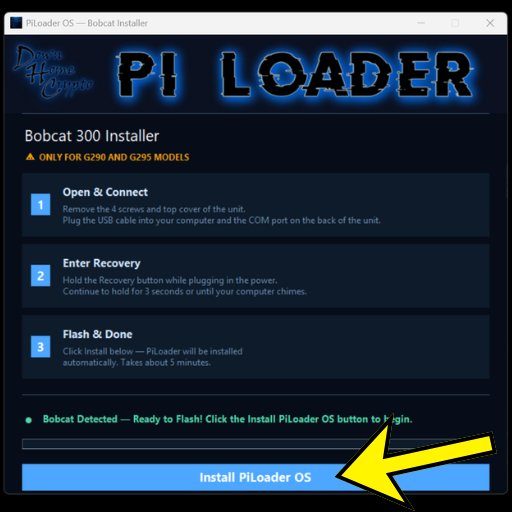
Click the Install PiLoader OS button. The flasher will automatically download the latest PiLoader OS image and flash it directly onto your Bobcat's internal storage. This process is fully automatic and should take between 7–10 minutes to complete.
Do not unplug the USB cable, power cable, or close the flasher during this process. Interrupting the flash will leave the miner without a working operating system.
Once the Bobcat Flasher shows "Flash Complete ✓" it is safe to unplug the power cable and the USB cable. Place the top cover back on and reinstall the four T9 Torx screws to secure it. Your Bobcat miner now has the current version of PiLoader OS and is ready for First Time Setup.
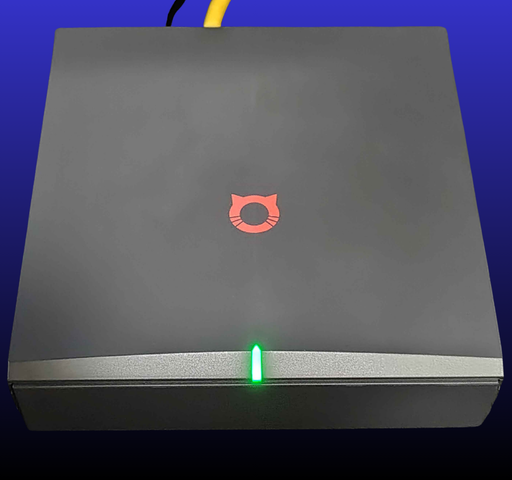
Connect the ethernet cable and plug in the power cable to boot your Bobcat miner. Watch the LED on the front of the miner:
First boot may take up to 60–90 seconds. If the LED stays blue for more than 2 minutes, power cycle the miner (unplug and replug power).
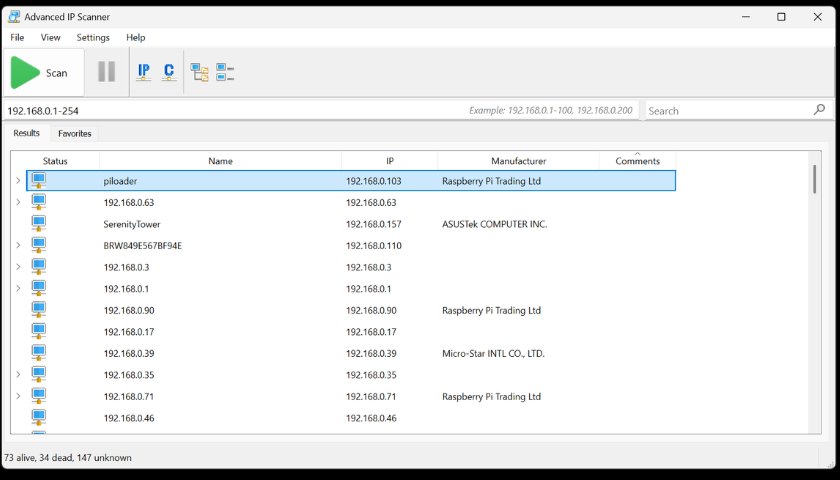
Open Advanced IP Scanner on your PC and click Scan. Look for a device named "piloader" in the results list — make a note of the IP address next to it. You'll need it in the next step.
Alternatively, log into your home router (usually at 192.168.0.1 or 192.168.1.1) and check the connected devices list to find the piloader IP address.
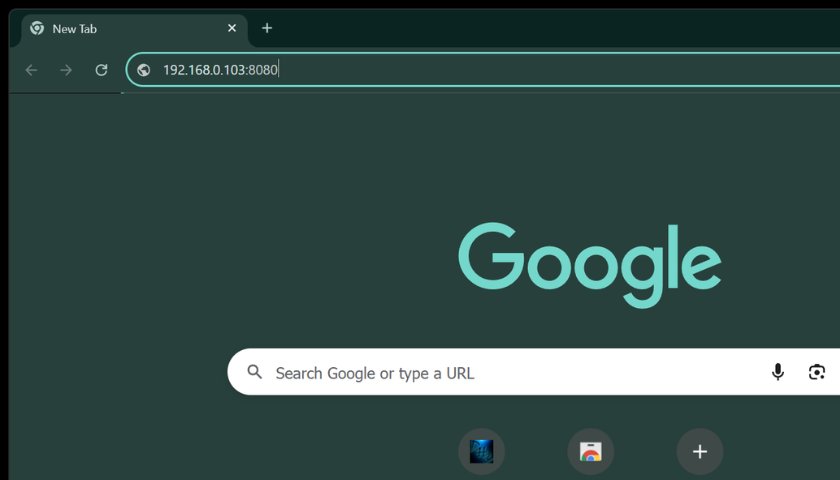
On any device connected to your home network, open a browser and type your device's IP address followed by :8080. For example: 192.168.0.103:8080
You should see the PiLoader OS setup screen. Bookmark this address for easy access going forward.
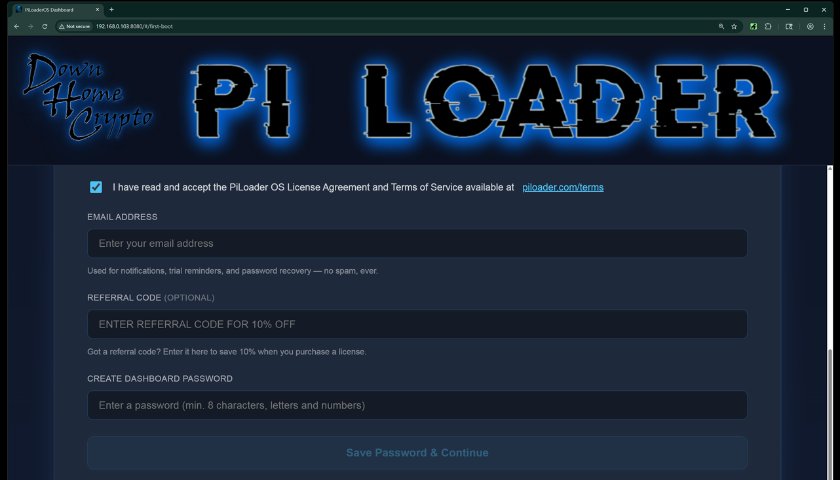
Read through the Terms and Conditions and accept them. Enter your email address — this is required for password recovery and license registration so make sure it's accurate. Choose a strong, unique password for your dashboard. Click "Save Password & Continue" to proceed.
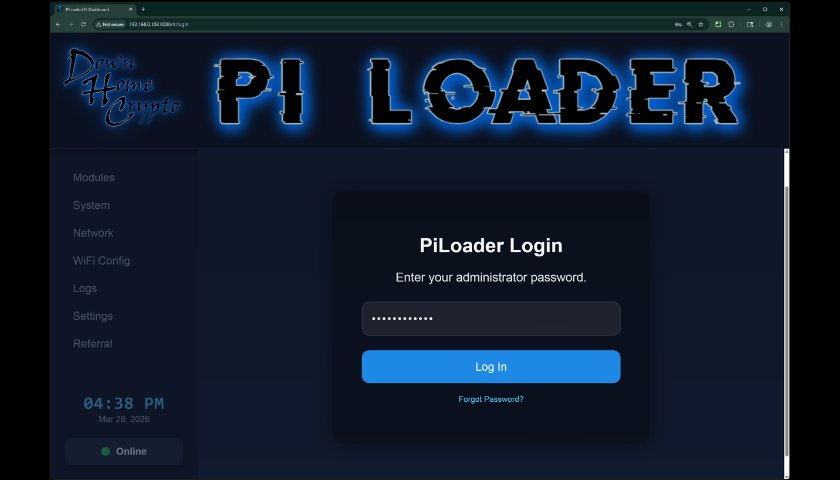
Enter the password you just set and click "Log In". Welcome to your PiLoader OS dashboard — this is your command center. From here you can install and manage your earning modules, monitor your hardware health, configure your network and WiFi settings, set your local time zone, and access everything PiLoader has to offer. You did the hard work — now let your Bobcat start earning for you.
You're Live!
Head to the Modules section in your dashboard and start enabling your earning apps. Enter your credentials, hit install, and PiLoader OS takes care of the rest. Good luck out there — and Happy Mining! 🎉
Join the Down Home Crypto Discord community to stay up to date with the latest news, get help from fellow PiLoader miners, and share your mining adventure with people who get it.
Join the DHC Discord Community →